How do I Fix Outlook Data File cannot be Accessed after Moving PST?

You might see the Outlook data file (.pst) cannot be accessed (0x8004010F) error, when you try to send or receive emails, update folders, synchronize your mailbox, or access Outlook data. This error message means Outlook cannot access the PST file that belongs to your account. It usually happens when the PST file is moved from its original location or is corrupted. However, there might be several other reasons that can cause this error. In this post, we will explain the probable reasons behind this issue and the methods to fix it and if your PST file severely corrupted you can opt for Outlook PST repair tool.
Understanding the Causes of “Outlook Data File Cannot Be Accessed” Error
Below, we have mentioned some common reasons that can cause this Outlook error:
- Moving the PST file from its default location to another folder
- Network connectivity issues if the PST file is stored on a network drive
- Corrupted PST File
- Conflicts with antivirus software or Outlook add-ins
- Insufficient file permissions
- Corrupted Outlook profile
Methods to Fix the Error “Outlook Data File cannot be Accessed”
You can follow the troubleshooting methods mentioned below to fix this issue.
1. Check and Update the File Path
If you have moved your PST file to another location, Outlook might continue to look for the file at the same location. Consequently, Outlook can’t locate this file and shows the error message. You must update the new location of the PST file in Outlook to fix this problem. Here’s how:
- Close MS Outlook completely.
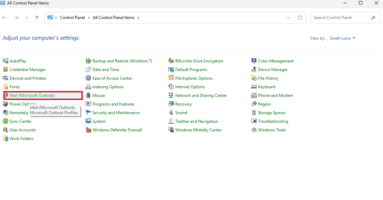
- Open the Control Panel.
- Select “Mail” or “Mail (Microsoft Outlook)”.
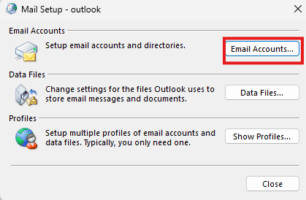
- Click on Email Accounts.
- Then, select Data Files.
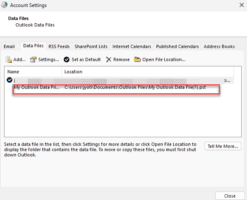
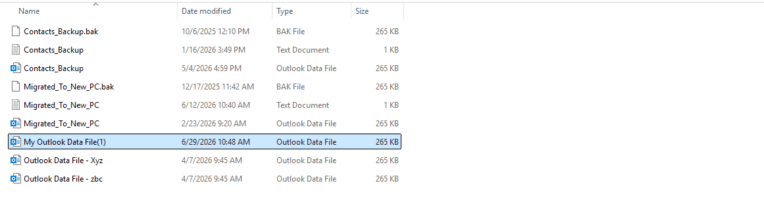
- Open the file location.
- Check if the PST file is available at the default location.
- If not, then update the PST file path.
To update the path,
- Open Control Panel.
- Select Mail (Microsoft Outlook) > Data Files.
- Click Add and browse to the new file location.
- Select your moved .pst file. Click OK.
- Select your newly added data file from the list.
- Click Set as Default.
- Select the old, incorrect PST file path.
- Click Remove.
- Click Close and then launch Outlook.
Now check if the issue is resolved.
2. Verify and Assign the File Permissions
Outlook may display the data file cannot be accessed error, if your account lacks the permissions on the PST file or the folder where it is stored. Make sure that your user account has the necessary permissions. Below steps will help you check and changes the permissions:
Note: You need administrator access to change the file permissions.
- Go to the folder where the PST file is currently stored.
- Right-click the folder. Select Properties.
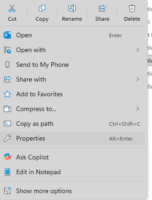
- Go to the Security tab. Check the current permissions.
- If you don’t have the required permissions, click Edit.
- Select your user account from the list.
- Under the Allow column, ensure that Read, Write, Read & Execute, and Modify are enabled.
- You can also select Full Control, which automatically grants all the required permissions.
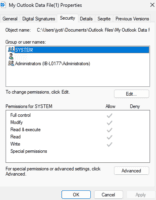
- Click Apply > OK.
- Restart Outlook.
3. Move PST File from Network Drive to Local Drive
If your Outlook data file (.pst) is stored on a network drive, such as OneDrive, Outlook may not be able to access it if the network connection is unstable or unavailable. You can avoid this issue by moving the PST file to the local drive on your computer. Follow the steps below to do this:
- Copy the .pst file from your network drive folder.
- Paste it into your local directory on your drive (e.g., C:\Users\YourUsername\Documents\Outlook Files\).
- Update the PST location in Outlook (see Method 1).
- Start Outlook and check if the issue is resolved.
4. Create a New Outlook Profile
If you still encounter the error, there is a chance that the Outlook profile is corrupted. Creating a new profile can resolve the issue. Here’s how:
- Go to Control Panel.
- Click on Mail > Show Profiles.
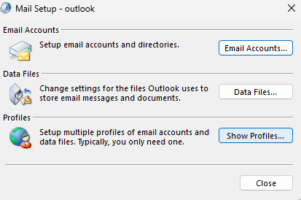
- Click Add.
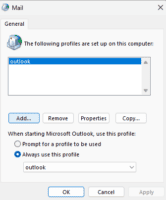
- Name the new profile (e.g., “New_Work_Profile”).
- Follow the prompts to add your email account.
- Set this as the default profile.
- Restart Outlook.
5. Repair Corrupted PST File
If the error persists, the PST file may be corrupted. It can happen due to unexpected system shutdown, disk errors, malware infections, or interruptions while copying or moving the file. To fix this, you can use Microsoft’s built-in Inbox Repair Tool (Scanpst.exe) to scan the PST file for errors and fix minor corruption. Follow the steps given below:
- Close Outlook completely.
- Locate ScanPST.exe on your system. The default location is:
- For Outlook 2016/2019: C:\Program Files\Microsoft Office\root\Office16\
- For Outlook 2013: C:\Program Files\Microsoft Office\Office15\
- Double-click ScanPST.exe.
- Click on Browse. Select the PST file.
- Then, click on Start to scan the file for errors.
- If errors are found, click Repair to fix them.
Once the repairing process is finished, launch your Outlook and see if the error is fixed.
ScanPST.exe can only fix minor corruption in your PST file. However, it may not be able to repair oversized or highly corrupted PST files. In such a case, you can go for an advanced PST repair tool.
If your data file is small and you want to repair it without installing any software, then Free Online PST repair by Stellar is the best option. This tool allows you to repair up to 500 MB for free. If your data file .pst is larger than this, then you can go for its premium version to repair up to 5GB.
However, if your PST file is oversized, you can use Stellar Repair for Outlook – desktop edition. This software is capable of repairing a PST file of any size and with any level of corruption. It can retrieve all the items, like emails, attachments, contacts, calendars, tasks, journals, and notes, and save them in a new PST file while keeping the original folder structure and mailbox hierarchy intact.
In case the repaired PST file is large, the software can split it into smaller files based on different parameters, like size, date, email IDs, etc. This will make the PST file more manageable and may reduce the chance of corruption due to large size.
Conclusion
Several Outlook users encounter “Outlook data file cannot be accessed” error while sending or receiving emails. This error occurs due to several reasons such as wrong file permissions, incorrect PST file path, corrupted Outlook profile, or PST file corruption. You can follow the troubleshooting methods discussed in this article to fix the error.
If the error occurs because of PST file corruption, consider using Stellar Repair for Outlook. With this software, you can repair damaged PST file and recover all the mailbox data, while keeping the original folder structure and mailbox hierarchy intact.